Getting started
The app has five tabs along the bottom: Home, Activity, Add, Insights and Settings. Business accounts see Home, Expenses, Advisor, Money and Settings.
- Create an account with your email and a password.
- At How will you use Latchet?, choose personal or business. You can’t change this later, so choose the one you mean.
- Set your currency and answer a few questions about your income and goals.
- On Home, follow Finish setting up: connect your email, import a bank statement, link your bank, or set a savings goal. Do any of them, in any order.
Subscriptions and free trials
Latchet looks for charges that repeat. It checks after every import, email sync and bank sync, so you don’t have to ask. Free trials come from billing emails, because a bank statement doesn’t know about them.
On Free, Subscriptions shows how many you have and what they cost each month. The list, the reminders and the steps to cancel are part of Pro.
- Open Subscriptions from Home (it appears after your first transaction) or from Insights.
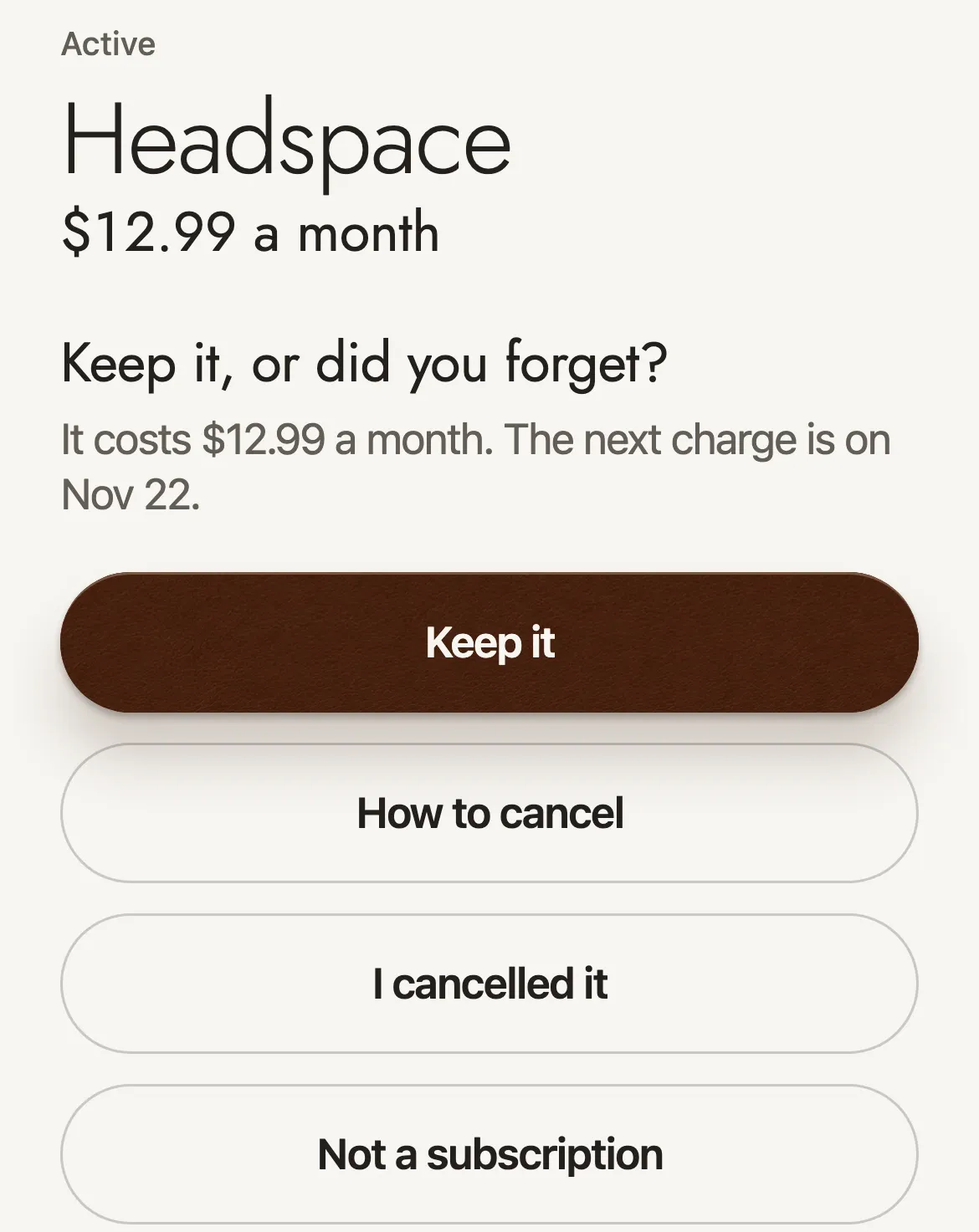
- At the top are the total each month and the Next 30 days. Below are Active, Free trials, To review and Ended and cancelled.
- Tap one. Choose Keep it, How to cancel, I cancelled it or Not a subscription.
- How to cancel gives you the steps and a link. Latchet can’t cancel for you: only the company can.
With notifications on, reminders arrive at 9 in the morning: a day before a weekly charge, three days before a monthly one, a week before a yearly one, and two days and one day before a free trial ends. You also hear about a new subscription, a price rise or a charge after cancelling the next time you open Latchet.
Scanning a receipt (Pro)
- On Home, tap Scan Receipt (it appears after your first transaction), or share a photo to Latchet.
- Tap Take Photo or Choose Photo.
- Check what AI found: amount, category and merchant. The date starts as today, so change it if you need to.
- Tap Save Transaction.
Saying what you spent (Pro)
- On Home, tap the round button at the top to open the advisor.
- Hold the microphone in the message box, say what you spent, and let go.
- Check What I heard. Fix an amount or untick a line if you need to.
- Tap Save. Nothing is saved before that.
On iPhone you can also use Siri: say “Log an expense in Latchet” or “Log income in Latchet”, and answer how much and what for. It’s waiting in the app the next time you open it.
The AI advisor (Pro)
- On Home, tap the round button at the top. On a business account, open the Advisor tab.
- Tap a suggestion such as How am I doing this month?, or type your own question.
To make its answers more personal, fill in Settings › Accounts › Advisor profile. It’s stored on your phone and sent along with your questions.
It gives budget guidance, and it can be wrong. It won’t recommend products or investments, and nothing it says is financial, tax, legal, medical or nutritional advice.
Connecting Gmail (Pro)
- Open Email receipts from the checklist on Home or from an empty Subscriptions screen.
- Tap Connect Gmail and allow access on Google’s page.
- Wait while Latchet reads your last year of email for billing messages. You can leave the screen.
- Your subscriptions appear on their own. What Latchet reads shows exactly what it looks at.
Prefer not to connect? The same screen gives you a private Latchet address. Forward your billing emails to it from any email service, or set up a rule that does it for you. You can disconnect at any time.
Linking or importing a bank
Link a bank (Pro)
Bank linking needs a paid plan: it isn’t included in the free trial. Pro links up to 5 banks, Business up to 10 and Business Plus up to 15.
- Open Settings › Accounts › Link Bank Account.
- Find your bank. Plaid covers the US, Canada, the UK and much of the EU.
- Read what Latchet can and can’t do, tap Connect Bank, and sign in to your bank on Plaid’s own secure page.
- Your transactions arrive by themselves. To disconnect, choose whether to keep or delete what was imported.
Import a statement (any plan)
- Open Settings › Accounts › Import Transactions.
- Choose Bank statement, Alipay or WeChat, and pick your file.
- If Latchet can’t tell which columns are which, pick the date and the amount.
- Check the summary and tap Import. Duplicates are skipped.
CSV files work on any plan, and are read on your phone. A PDF statement is part of Pro: Latchet asks first, then sends it to be read by AI. It can be up to 10 MB.
Running a business
Set up your team
- At How will you use Latchet?, choose Create a business.
- Open Team from Home, copy your invite code and share it.
- Your people choose Join a company and enter the code. They start as employees.
- In Team, make someone a manager if they should approve expenses.
The owner pays. Business holds 10 people, the owner included, and Business Plus 25. Everyone else joins free with the code. Both include Pro for the owner’s own money.
Submit an expense
- Open Expenses and tap Add.
- Enter the amount, a description and a category, and attach a receipt if you have one.
- Tap Submit Expense.
Approve or reject
- Owners and managers open Expenses and filter by Pending.
- Tap View Receipt if there is one, then Approve or Reject.
Nobody can approve their own expense, so an owner working alone needs a manager to approve theirs.
Payroll and budget
- Open Money › Payroll and tap Add to record each person’s salary.
- Mark each one Paid once you’ve paid them. Latchet only keeps the record, and moves no money. Employees see only their own salary.
- Open Money › Budget to set a monthly budget.
Everything else
- Household (Pro): Settings › Accounts › Household. The person who sets it up pays, and the others join free. Each person chooses how much they share: totals only, totals and categories, or everything.
- Budgets by category, bills and recurring transactions: Settings › Tools. Net worth is there too, with Pro.
- Health score, spending report and alerts (Pro): Insights › Go deeper.
- Biometric lock: Settings › Preferences.
- Language: Settings › Language. Latchet is available in multiple languages.
- Export: Settings › Accounts › Export Data: your records as JSON on any plan, or your transactions as CSV with Pro. On a business account it’s Settings › Business › Export Data, as JSON. The JSON leaves out receipt and logo images, your advisor profile and invite codes, and Latchet can’t import it back.
- Delete your account: at the bottom of Settings.
Plans
Free keeps your budget by hand: transactions, accounts, budgets, bills and reminders, CSV import, a JSON export of your records, and how many subscriptions you have and what they cost each month. Pro adds everything marked Pro on this page, and starts with a 7-day free trial, which doesn’t include bank linking. Business and Business Plus add your company and your team, with Pro included for your own money. Prices are on the pricing page.
Free has no AI features. On Pro and Business, each one has its own allowance a month: 500 advisor questions, 150 receipt scans, 100 voice notes of up to 2 minutes, 5 PDF statements of up to 20 pages, and 300 billing emails read.
Questions
When can I get Latchet?
It hasn’t launched yet. Join the waitlist and we’ll write when it’s ready. Until then, you can try it in your browser.
What does the demo show, and what does it leave out?
The demo is the real app, running in your browser with a made-up person’s money. Its bank and Gmail connections are pretend, and the advisor’s answers, the voice note and the receipt are samples. Nothing you do there leaves the page, and it starts over when you reload.
Can Latchet move my money?
No. Bank access is read-only, and payroll is a record that moves nothing. Latchet can’t make a payment or a transfer. Everything Latchet can and can’t do.
Can Latchet cancel a subscription for me?
No: only the company can. Latchet shows you how, with the steps and a link to the company’s own page, and you tell it once it’s done.
My bank isn’t in the US, Canada, the UK or the EU.
Import a statement instead: a CSV from any bank, or an Alipay or WeChat Pay export, on any plan, or a PDF with Pro. Subscriptions are found in imports just as they are in a linked bank.
I don’t use Gmail.
Forward your billing emails to your private Latchet address, from Outlook, iCloud or anything else. You’ll find it on the Email receipts screen. Like Gmail, it’s part of Pro.
What counts as an AI action?
Asking the advisor a question, scanning a receipt, reading a PDF statement, turning a voice note into transactions, or reading a billing email. They’re part of Pro and Business, and each has its own allowance a month, listed under Plans.
Do you sell my data, or show me ads?
No. The app has no advertising or analytics tools, and this website sets no cookies. The privacy policy has the detail.
How do I take my data with me, or delete it?
Export your records as JSON from Settings › Accounts › Export Data (Settings › Business › Export Data on a business account), on any plan, or your transactions as CSV with Pro. The JSON leaves out receipt and logo images, your advisor profile and invite codes, and Latchet can’t import it back. Delete your account at the bottom of Settings. What deleting removes.
Still stuck?
Write to support@latchet.app, and say which screen you were on.